Joe Maring / Android Authority
Modern Samsung phones are packed with features — more so than practically any other Android brand. That’s obviously great if you like to tinker with and get the most out of your phone, but with so many tools at your disposal, it’s only natural to have some of them fall through the cracks.
This was the case with Samsung’s hidden Wi-Fi menu we highlighted a few months ago, and we’ve also now stumbled across a little-known audio feature that’s arguably even cooler. It’s called “Separate App Sound,” and if you aren’t using it now, you’ll absolutely want to. Here’s how it works.
Did you know about Samsung’s Separate App Sound feature?
0 votes
How to use Separate App Sound on your Samsung phone

Lanh Nguyen / Android Authority
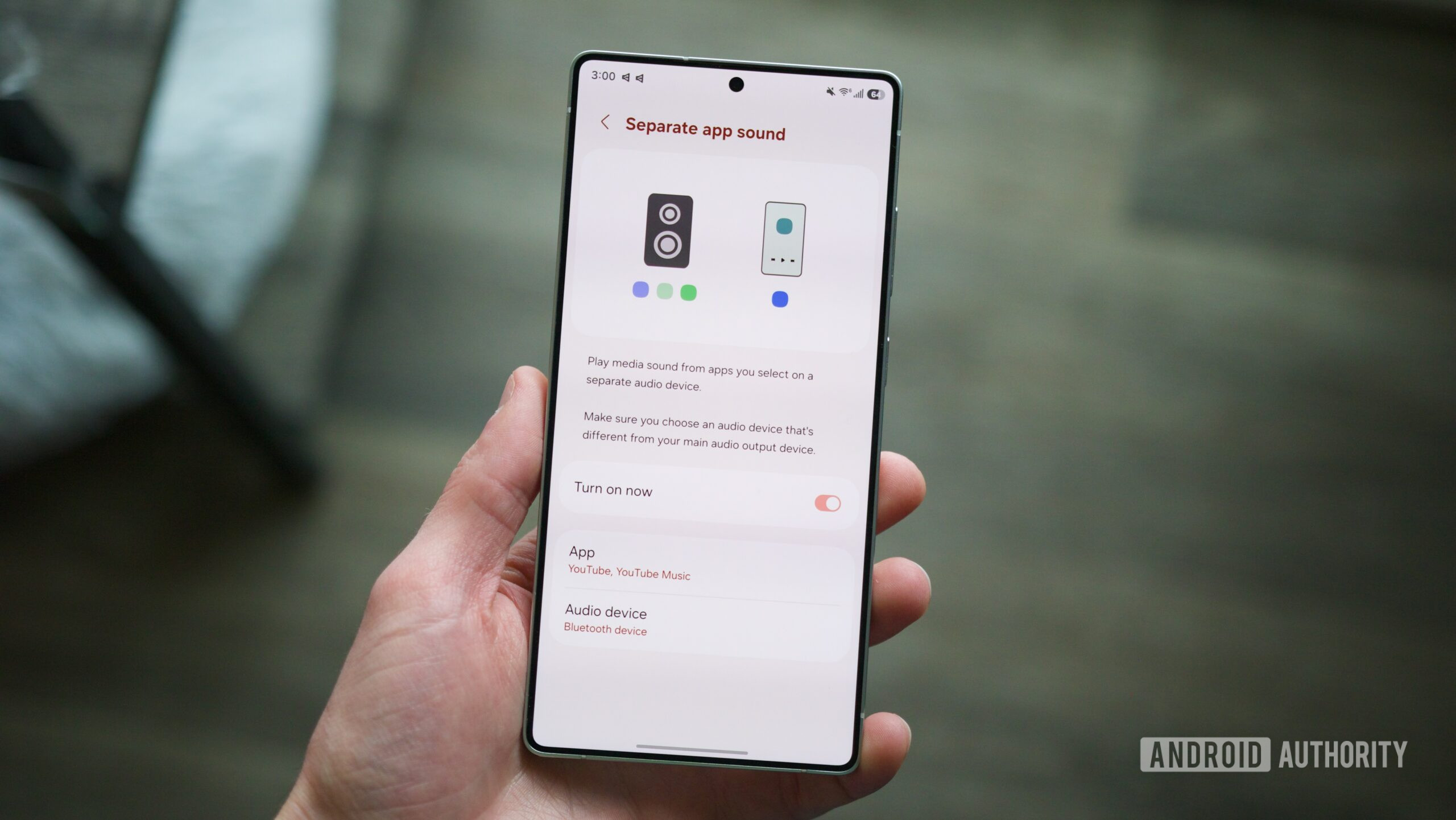
In short, Separate App Sound does exactly what the name implies — it allows you to play audio from specific apps through different audio sources. For example, if you want YouTube Music to play through your Bluetooth speaker while notification alerts and other sounds still play through your phone’s speaker, you can do that.
Separate App Sound isn’t that difficult to find in the Settings app, but if you don’t know where to look, chances are you’ve glossed over it countless times without ever realizing. To set up and enable Separate App Sound, here’s what to do.
- Open the Settings app on your Samsung phone.
- Tap Sounds and vibrations.
- Scroll to the bottom of the page.
- Tap Separate app sound.
- Tap the toggle next to Turn on now.
- Tap Select on the pop-up.
- Select which apps you want.
- Select whether to play the audio from those apps on your phone or a connected Bluetooth device.
After doing this, you may receive a notification about changing your main audio output. For example, I selected YouTube and YouTube Music to play through the Pixel Buds 2a, but they were already set as the main audio device on my phone. After tapping OK on this notification, my Samsung phone speakers switched to the main audio output, while the Pixel Buds 2a were limited to playing YouTube and YouTube Music audio, as configured above.
Separate App Sound first debuted with the Galaxy S8 series in 2017, so while it’s far from a new feature, it’s also rarely discussed. I’ve been writing about Android phones for years, and I wasn’t aware of its existence until a recent post on r/SamsungGalaxy pointed it out.
Why should you use or care about Separate App Sound?

Joe Maring / Android Authority
That’s how Separate App Sound works, but how is this useful, and why would you ever want to use it? There are a few scenarios where it can come in handy.
Let’s say you have some friends over at your place and are playing music on your phone via a Bluetooth speaker. Normally, all smartphone audio would play through the Bluetooth speaker, including phone calls and notifications, which you probably won’t want interrupting the music. With Separate App Sound, you could set it up so that only your music app audio plays through the Bluetooth speaker, while all other audio uses your phone speaker.
When my partner and I drive together, their phone is often connected to the car’s Bluetooth to play music. However, if they open a Snapchat message or scroll past a video on Instagram, the audio from that app interrupts the music. Separate App Sound could prevent that from happening. If you’re listening to a Google Meet or Teams call through your earbuds, you can route all other audio to your phone’s speaker.
There are countless scenarios like this where Separate App Sound can come to the rescue, and it’s a shame that no other Android brand other than Samsung has cracked the code on how to make it work. For a Pixel user like me, I’m bummed. But for any Samsung users out there, have fun with this one.
Don’t want to miss the best from Android Authority?


Thank you for being part of our community. Read our Comment Policy before posting.